
How to Create New Property Owner’s or Property Manager’s Contact Information in Slate Mobile
Last updated: Sep 23, 2026
104
views

Step 1. Log in to your Slate Account
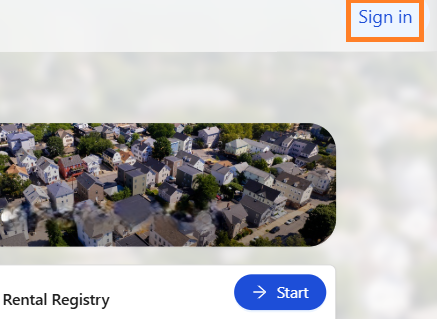
- Navigate to your registry landing page.
- Click the [Sign In] button in the upper right corner.
Step 2. Address Contact is listed as Property Owner or Property Manager
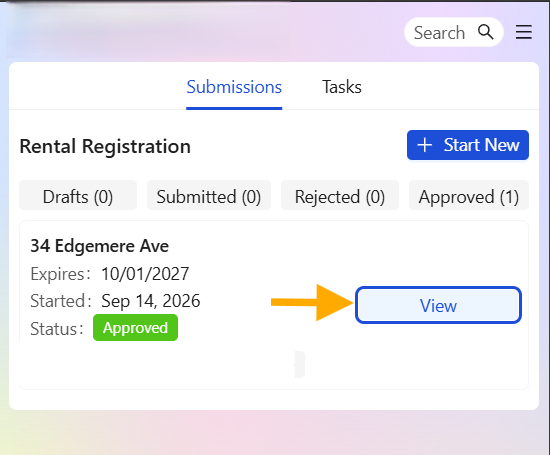
- Click on the [View] button.
- This will open the property profile window showing the submitted registration information for the address.
Step 3. Property Profile Window
- Within the property profile window scroll to the Property Owner or Property Manager section.
- To add another Property Owner or Manager/Agent click the blue [+Add...] button to create the new conact.
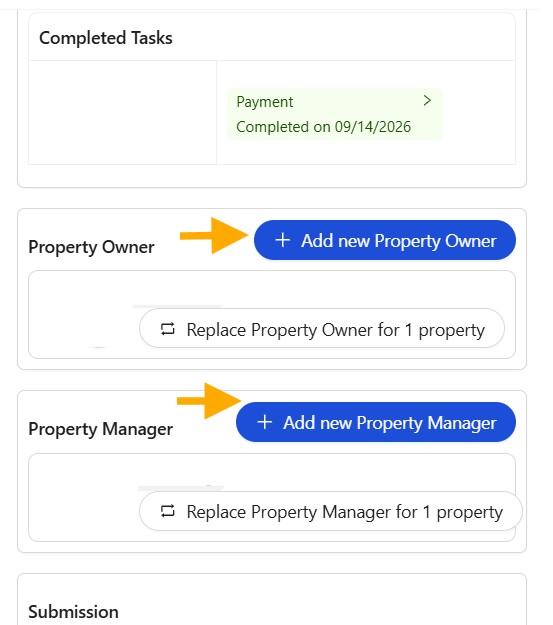
Step 4. Create New Contact Information
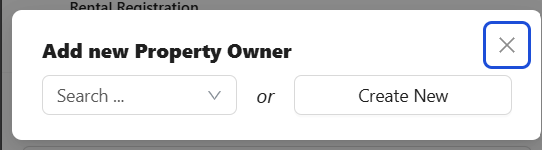
- You are able to search for a new contact if they are within the system or create a new contact
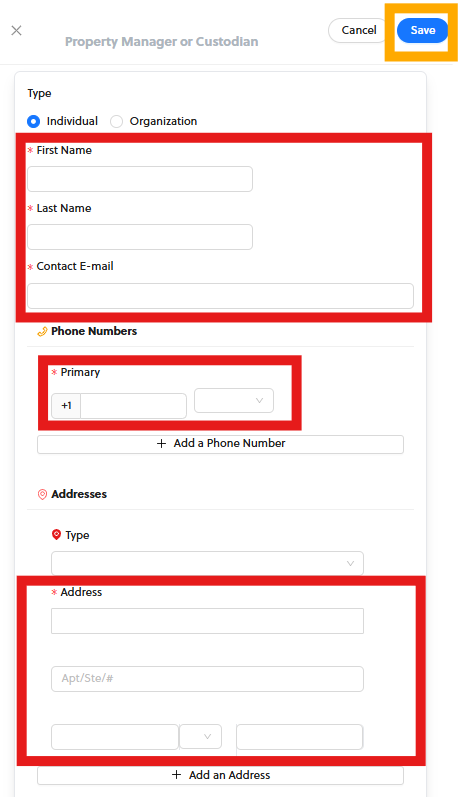
- Complete all required fields noted by an asterisk (*).
- Select the [Save] button when finished.
- Note: Anywhere this contact is associated with an address, their contact information will be updated.